

Let’s discuss about How To Fix Roblox Error Code 403! Glimpsing the scary “Authentication Failed” text on Roblox? That’s Error Code 403 and it will deny access to all games on the site. If you find yourself gazing at that error code, breathe a sigh of relief. That’s a worse-sounding issue than it actually is and it’s resolved by many players within a few minutes once they know how to do it.
The good news? You’re probably not banned. This error usually points to a connection issue or login glitch and it’s usually fixable. After helping dozens of players resolve this issue, I’ve compiled every working fix ranked by success rate.
What Is The Cause of Roblox Error Code 403?

It helps to know what causes Error 403 before fixing it understanding the root makes it easier to avoid next time. Error 403 is fundamentally an authentication problem that occurs when Roblox can’t verify your identity or connection properly.
Most Error 403 issues boil down to one of these:
– You’re using a VPN or proxy
– Your login token is corrupted
– Your firewall or antivirus is blocking Roblox
– Your DNS isn’t resolving properly
– Or you’ve got some browser cache leftovers getting in the way
Out of all these, VPNs and broken login sessions are the most common culprits.
Understanding which cause applies to you determines which fix works fastest. Most cases stem from VPN usage or corrupted cache files.
How To Fix Roblox Error Code 403
Prior to going into advanced solutions, this easy technique solves most of the Error 403 cases:
The Fast Logout Method:
- Close Roblox completely – Exit the app or browser tab entirely
- Open Roblox Player or website again
- Click the three dots menu (top-left on Player, top-right on web)
- Select “Log Out” and confirm
- Give it half a minute – Let the session clear completely
- Log back in with your credentials
- Try joining a game immediately
Logging out and back in resets your session completely, which usually clears out any login bugs behind the 403 error.
Why does this fix help? Roblox keeps you logged in with a token system. If that token becomes invalid, Roblox can’t recognize your account until you sign out and back in. Logging out clears that token and resets your session cleanly.
Turn Off Your VPN
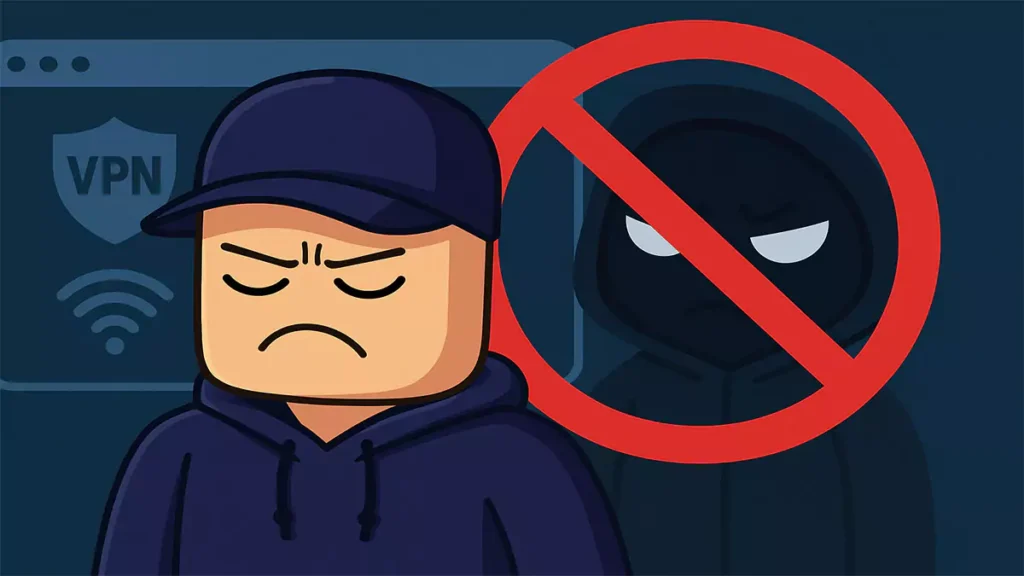
Using a VPN? That’s likely your issue. Roblox blocks a lot of VPN traffic because it’s commonly linked to ban evasion or location spoofing. From what I’ve seen in the community, VPNs are the number 1 cause of this issue especially with mobile users.
Windows VPN Disconnect
- Open Settings (Windows + I)
- Navigate to Network & Internet
- Click VPN in the left sidebar
- Select your active VPN connection
- Click “Disconnect” or “Remove”
- Give your PC a quick restart to reset your connection fully before launching Roblox again.
- Launch Roblox without reconnecting VPN
VPN Apps
- Turn on the VPN app that you use
- Click “Disconnect” or turn off protection
- Exit the VPN app completely – don’t just minimize it
- Check system tray to ensure it’s not running in background
- Restart Roblox
Pro Tip: If you really need a VPN for other stuff, check if your app has split tunneling, that way you can exclude Roblox from the VPN while keeping everything else protected.
Wipe Out Broken Cache Files
Still seeing the error? A broken cache is a common cause especially after Roblox updates or login bugs. Old login data or broken files can confuse the app wiping that cache gives you a clean slate.
Windows Cache Clearing
To open Roblox’s storage folder on Windows, press Windows + R, then paste this: %localappdata%\Roblox and hit Enter. Once you’re in there, delete these folders:
logsfolderhttpfoldercachefolder
You can empty the recycle bin then and restart Roblox Player.
Browser Cache
- Press Ctrl + Shift + Delete to open clear data menu
- Select “All time” as time range
- Check these boxes:
- Cookies and site data
- Cached images and files
- Click “Clear data”
- Restart your browser completely
- Log back into Roblox
Mobile Cache
iPhone/iPad:
- Open Settings and find iPhone Storage
- Find and tap Roblox
- Tap “Offload App” (keeps documents/data)
- Tap “Reinstall App”
- Open Roblox and log in again
Android:
- Open Settings > Apps > Roblox
- Tap “Storage”
- Tap “Clear Cache“.
- Only use “Clear Data” if the error keeps happening but note it logs you out.
- Restart the app
Check That Your Firewall Isn’t Blocking Roblox

Your antivirus software or firewall may block Roblox by mistake, particularly if it’s regarding it as suspicious. And i’m guessing, you did come here to learn a way How To Fix Roblox Error Code 403 so far be it!
Windows Firewall Whitelist Process:
- Open Control Panel (search it in Start menu)
- Click “System and Security”
- Select “Windows Defender Firewall”
- Click “Allow an app through firewall” on left sidebar
- Click “Change settings” (requires admin)
- Click “Allow another app…” at bottom
- Use the “Browse” button to find your Roblox Player file:
C:\Program Files (x86)\Roblox\Versions\[latest version]\RobloxPlayerBeta.exe
- Add this file and check both Private and Public boxes
- Restart Roblox
Note: Big Roblox updates often change the file path, so you may need to whitelist the new version again later.
Firewall/Antivirus
Different security software requires different approaches:
Norton/McAfee/Kaspersky:
- Open your security software
- Find “Firewall” settings
- Look for “Program Permissions”
- Add RobloxPlayerBeta.exe to trusted list
- Save changes and restart Roblox
Switch to Public DNS
I’ve seen cases where Roblox just won’t connect right, and weirdly enough, it often comes down to your DNS settings. Try switching to something like Google or Cloudflare, it tends to fix things faster than you’d think.
Windows DNS Change:
- Press Windows + R
- Type: ncpa.cpl
- Right-click your active network
- Select “Properties”
- Double-click “Internet Protocol Version 4”
- Choose “Use the following DNS server addresses”
- Enter these values:
- Preferred DNS:
8.8.8.8 - Alternate DNS:
8.8.4.4 - Or use Cloudflare:
1.1.1.1and1.0.0.1
- Preferred DNS:
- Click OK on both windows
- I always restart the PC after this, you should too
Reinstall Roblox

Weird as it sounds, uninstalling and then reinstalling Roblox can actually do the trick if you’re still stuck with that Error 403 thing. I had it happen once, and wiping everything out like, all the old leftover stuff and grabbing the newest version straight from the site gave me a clean start. No fancy fix, but it worked.
Windows Complete Removal
- Close Roblox completely
- Head to your PC settings and find the list of installed programs.
- Find “Roblox Player”
- Click three dots and select “Uninstall”
- After uninstalling, press Windows + R
- Type:
%localappdata%\Robloxand press Enter - Delete the entire Roblox folder (if it still exists)
- Empty Recycle Bin
- Once done, give your device a quick restart to reset everything properly.
- Visit roblox.com and download fresh installer
Mobile Reinstall (iOS/Android)
iPhone/iPad:
- Press and hold the Roblox app
- Tap “Remove App”
- Select “Delete App” (not just remove from home screen)
- Restart your device
- Reinstall from App Store
Android:
- Open Settings, tap Apps, and scroll to find Roblox
- Tap “Uninstall”
- Restart your phone
- Reinstall from Google Play Store
Check if Roblox Servers Are Down
Before diving into advanced fixes, make sure Roblox itself isn’t down. If servers are offline, none of your local fixes will work.
Server Status Checks:
- Visit status.roblox.com for official status updates
- Check Twitter @Roblox for maintenance announcements
- Search “Roblox down” on Twitter for real-time user reports
- Visit DownDetector.com/status/roblox for community outage reports
Seriously, if Roblox is having server issues and yes, it does occur here and there there’s not much you’re going to be able to do on your end. I’ve witnessed individuals attempt all kind of repairs, but honestly, it’s merely a waiting game until things are worked out their end.
Advanced Troubleshooting

And here’s what I figured out: if Error 403 appears when trying to login to just a single Roblox account but login is successful for another, then the problem probably isn’t your device, to begin with. It’s something going on with that particular account.
Possible Account Issues:
- Pending ban or temporary suspension (check email)
- Age verification requirements (13+ accounts need verification)
- Payment disputes flagging your account
- Regional restrictions on your account
Getting kicked instead of blocked? Here’s how to fix Roblox Error Code 267
Stop Error 403 from Returning
If you don’t want it to happen again, then follow these easy steps to prevent your Roblox game from crashing on your device:
- Clear Roblox’s cache at least once a month to prevent login disagreements.
- Keep Roblox updated
- Skip the VPN while playing
- Whitelist Roblox in your antivirus
- Use stable internet wired if possible
Network Best Practices:
- If possible, plug in with an Ethernet cable, it’s more stable than Wi-Fi and helps avoid disconnect errors.
- Close bandwidth-heavy apps while playing
- Don’t switch networks mid-game session
- Avoid public Wi-Fi for Roblox access
Once you’re back in-game, here’s how to join a private server if you want a smoother experience.
Still Getting Error 403? Contact Support
Still no luck? If you’ve tried everything above and Error 403 won’t go away, it’s time to reach out to Roblox Support:
- Visit roblox.com/support
- Click “Contact Us”
- Select “Technical Support”
I’ve found that when you’re contacting Roblox Support, it actually helps a lot if you just lay out what kind of device you’re using like whether it’s a phone, tablet, or PC and which version of Roblox is on there. Also, mention what system your device’s running. Giving them all that upfront saves a ton of time, and in most cases, they’ll get back to you faster.
- Now that your game’s working again, check out the best Roblox games to play with friends
From my own experience, replies usually come back within a couple of business days, and the more details you include in your first message, the faster they’re able to pin down the problem.